
This Obsidian vault is the primary repository of lab knowledge. Obsidian is flexible software that can work in many different ways (you are encouraged to try it for your personal knowledge management!), but in order for it to be useful for the lab, we need to be able to use this vault together.
If you haven't already, be sure to Install Obsidian and clone the lab vault.
See Also:
Obsidian is organized primarily around plain-text (markdown) Notes, though other kinds of files can be included as well. For the most part, organization is handled through Tags and other metadata, though some amount of structure using Folders is also implemented.
Obsidian can also generate Databases of notes based on Tags and other metadata, which can be used to organize and keep track of lots of different things. Checkout out the All bases.base to see a list of databases in this Vault.
Notes are the primary unit in Obsidian, and are stored as plain-text Markdown files. Notes can be thought of as separate webpages (they literally are in the published version of this wiki), but they can also have special roles - eg they can represent a single task (with the Tasknotes Plugin), a paper, or a project.
Within a note, other notes can be linked by surrounding them in double square brackets (see the Tasknotes plugin link above as an example). If the note already exists, you will get auto-complete options. If not, you can still make the link, and an empty note will be created when you (or someone else) first clicks on it.
Obsidian keeps track of both incoming and outgoing links. "Backlinks" are links from other notes to the note you're currently on, and you can see them at the bottom of the app when editing a note, eg:
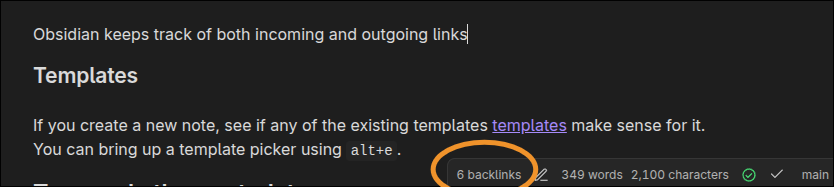
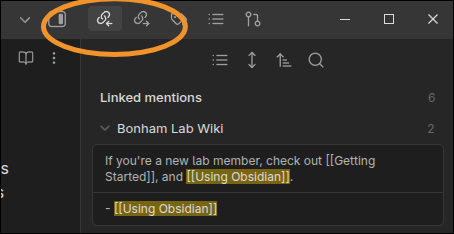
or using the right side panel (which you can open with the keyboard shortcut ctrl-shift-l or opening the command pallet with ctrl+p and typing "right sidebar").
At the beginning of notes, you can add "front matter", which contains Tags and other metadata (more on that below). In the raw file, this takes the form of a YAML-formatted dictionary, but Obsidian displays the information in a nice way, and makes it easy via the " Add file property" command (default shortcut ctrl+;).
Common file properties are type, date, and tags. See the Schema and the Tags and other metadata section below for more information.
If you create a new note, see if any of the existing templates make sense for it. You can bring up a template picker using alt+e.
For example, the meeting-template has file properties that are standard for meetings (date, participants, etc), and a checklist reminding you to take certain actions to keep things organtized. Try it out! Make a new note, press alt+e, and select the meeting template. la
There are many ways to organize and connect ideas in the obsidian vault. One way is using links as discussed above. Another way is using tags and other metadata.
Metadata can be added in "front matter" for a note. Press ctrl-; or use the command pallet (ctrl-p) and type "property" to add a file property. See also Schema.
Use bases to organize frequently-related notes (eg Bench protocols.base), click on tags (eg #protocol ) to bring up the search panel, or use the graph view (ctrl-g) and local graph view (ctrl-shift-g), which will show you links between notes and tags.
Tags can also be added in-line (as with #protocol above).
Folders (directories) are strictly for the file system, and mostly should not affect vault organization. Nevertheless, there are a few folders for very high-level organization, and for playing nice with certain plugins.
[[some_folder/my note]] and [[my note]]. This means that if you make a note in one folder and move it, all links are automatically updated. But it also means that you cannot use the same name as anyone else.
Databases or bases (files that end with .base) are specially displayed YAML files that enable aggregation and sorting of lots of other notes - essentially treating them as data. For example, the All bases.base is filtered on notes that are themselves bases, but you could also filter and sort on a specific tag or group of tags, creation time, or any other metadata associated with a note.
Bases can also be embedded in other notes by prepending the link with !, eg:
| Name | Folder | Modified | Backlinks |
|---|